
Build Your Own Platform as a Service
This guide configures apps and add-ons on your Kubernetes cluster. Install any of them through the Edka dashboard, through GitOps, or directly against the Kubernetes cluster API.
For this example, we’ll cover:
- Installing essential components.
- Provisioning a dedicated PostgreSQL runtime from the Databases workspace.
- Enabling cluster observability with retained logs and metrics.
- Deploying your applications to your cluster and exposing them to the internet.
- Set alerts.
Prerequisites
Section titled “Prerequisites”- A Kubernetes cluster in Edka (previously created). If you didn’t create one yet, see our Create Your First Cluster guide.
- One or more domain names that you own and can configure DNS records to point to your cluster’s primary Gateway API endpoint.
1. Install Envoy Gateway
Section titled “1. Install Envoy Gateway”Start by navigating to your cluster and select the Gateway tab.
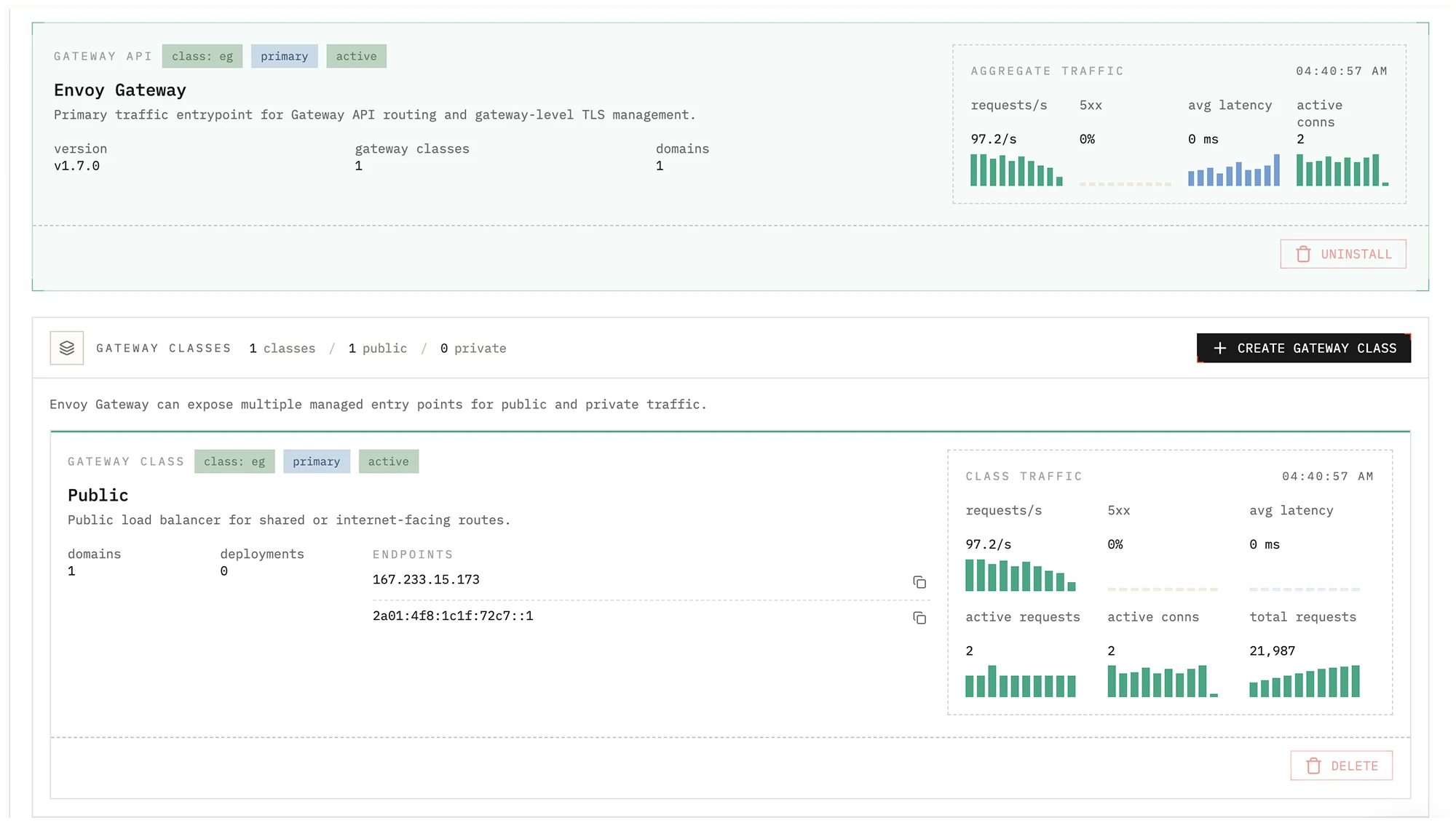
Edka ships a set of add-ons you can install on your cluster. For this guide, install the following:
- Envoy Gateway
Gateway API is the recommended way to expose your applications to the internet in Edka.
It automatically provisions a load balancer from your cloud provider and configures the necessary rules to route traffic to your applications. Once installed, the primary load balancer addresses are displayed in the cluster overview under Gateway API. You can create single-host or wildcard DNS records pointing to these addresses.
Learn more about Gateway API.
- cert-manager
It integrates with Gateway API and legacy ingress controllers to automatically provision and renew TLS certificates for your applications. It also provides TLS certificates for in-cluster services.
Learn more about how to use the cert-manager.
- Certificate Issuer
This is required to communicate with the certificate authority, in this example Let’s Encrypt, but you can configure other authorities directly in your Kubernetes cluster. cert-manager add-on is required for this to work.
2. Provision the required database runtime
Section titled “2. Provision the required database runtime”For this example we’ll provision PostgreSQL from the dedicated Databases tab.
You can install any additional packaged app later from Apps.
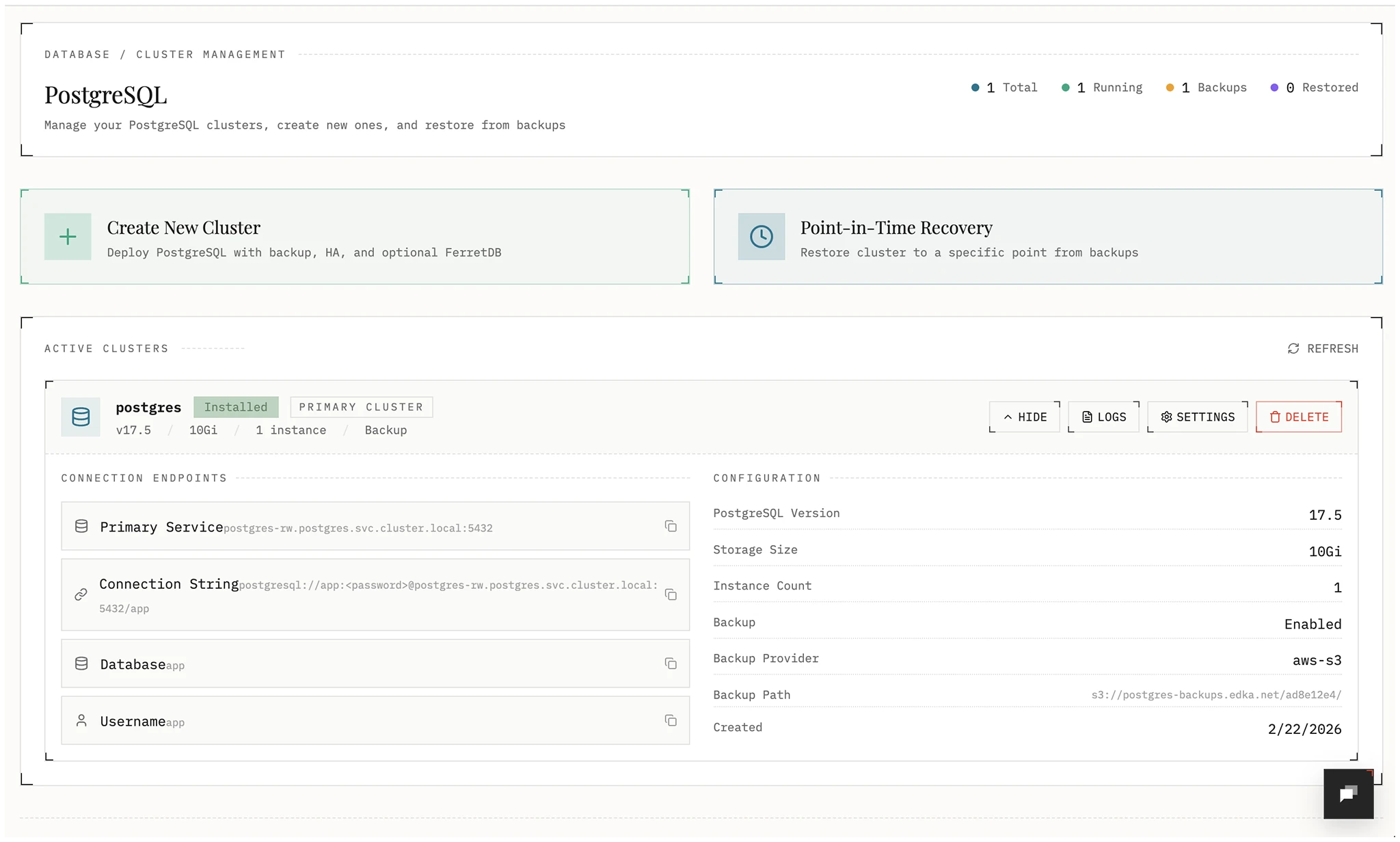
- PostgreSQL
Edka provides a dedicated database workflow to deploy PostgreSQL with high availability and point in time recovery. You can provision as many PostgreSQL clusters as you need, each with a single instance or a high availability topology with
3or5instances. Make sure your Kubernetes cluster has enough resources to run them without affecting other workloads.You can configure:
- Number of instances
- Storage allocation
- Dedicated WAL storage
- Continuous backups to S3 or GCS
- Restore to any point in time within the backup window
- Managed roles, databases, and extensions
Note: Do not forget to copy the generated credentials to a safe place or provide your own credentials. You’ll need them later.
The necessary add-ons to run the cluster will be provisioned automatically during the first deployment.
Once deployed, you can get the connection string, service endpoints, database logs, live runtime insights, and backup status. You can also update the configuration later and upgrade storage, exposure, pooler settings, and the number of instances.
3. Enable observability
Section titled “3. Enable observability”Open Observability → Settings if you want built in metrics and retained cluster logs.
This installs VictoriaMetrics and VictoriaLogs for the cluster and gives you:
- a PromQL explorer with metric-name browsing
- retained log search with quick filters
- Diagnostics alongside metrics and logs
- private UI exposure through Tailscale-aware traffic classes
Learn more in Cluster Observability.
4. Connect a Container Registry
Section titled “4. Connect a Container Registry”Edka supports several container registries, including GitHub Container Registry, Docker Hub, AWS ECR, and Google Artifact Registry. This example uses GitHub Container Registry.
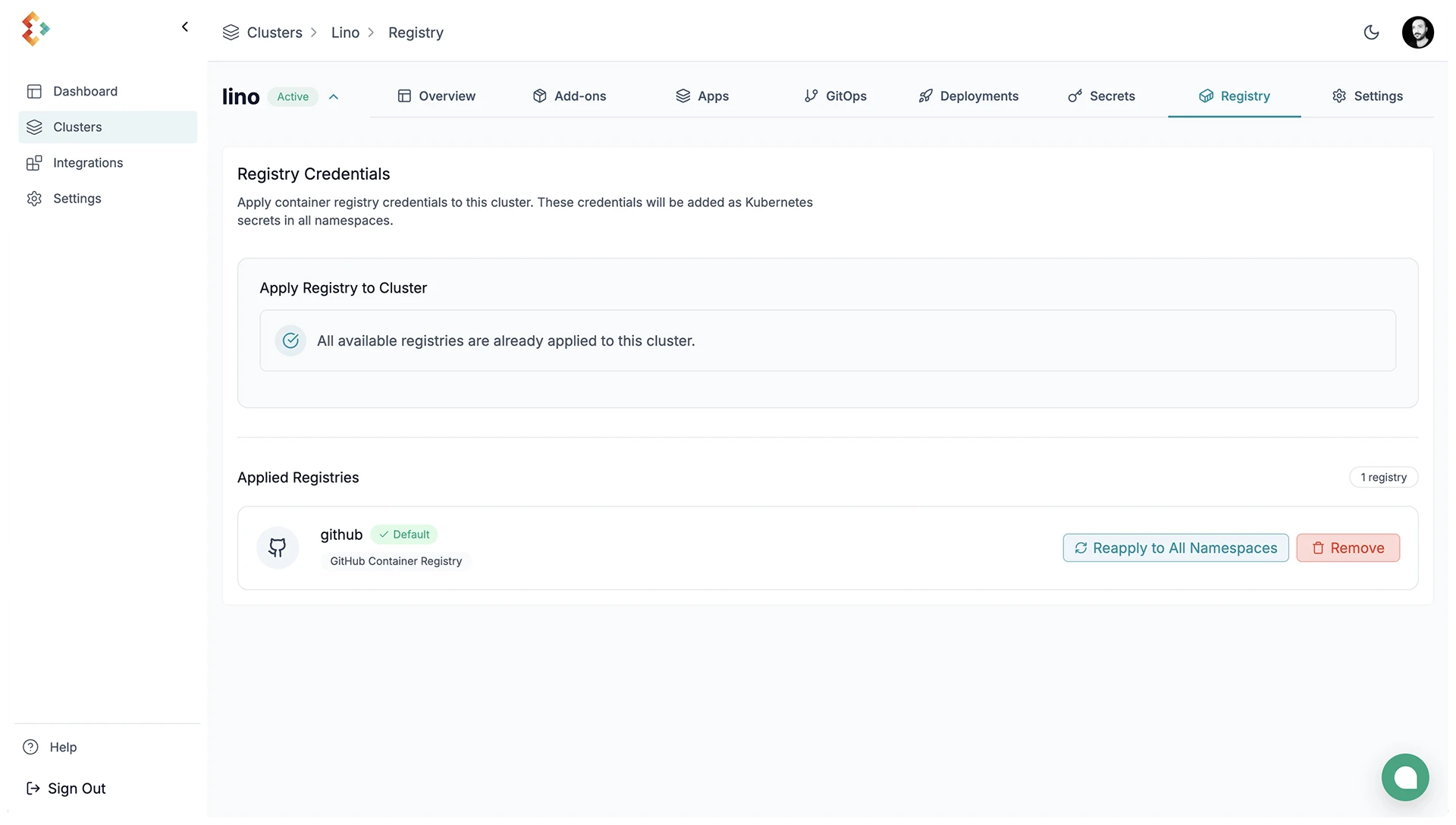
Navigate to Settings → Integrations → External Container Registry and select your container registry. Follow the specific instructions for your chosen registry to connect it to your account. By connecting it to your account, you can apply the registry to any cluster deployed with Edka.
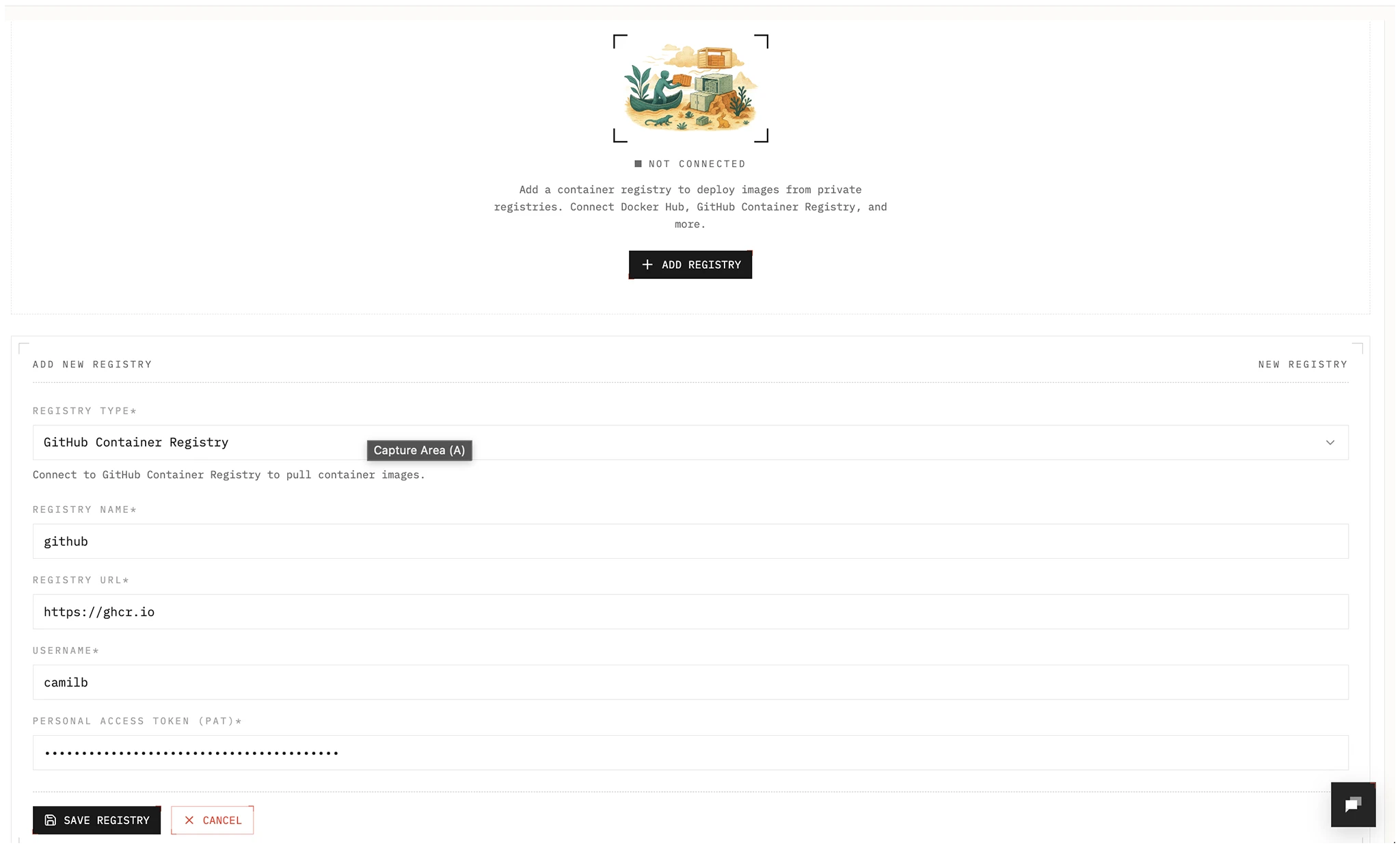
Once connected, you have to enable the registry for your cluster and set it as the default registry for your workloads. If you plan to have multiple registries, you have to specify the registry to use for each workload.
This can be done in the Registry Tab > Apply Registry > Set as Default.